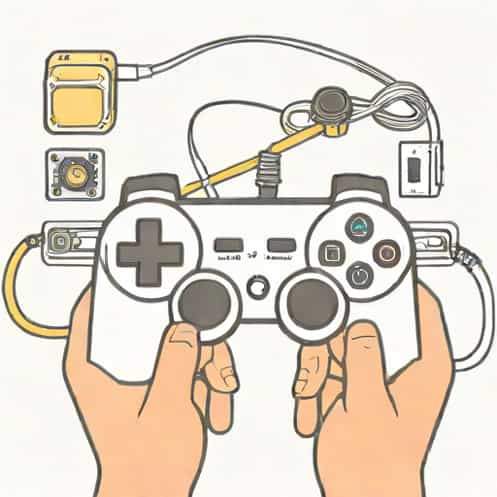
Connecting an Afterglow Switch controller to a PC allows gamers to enjoy the familiar comfort of console-style controls while playing their favorite PC games. Afterglow controllers, designed with vibrant lighting and ergonomic layouts, provide both aesthetic appeal and functional performance. Whether you are transitioning from console gaming to PC or simply want a versatile controller for your computer setup, understanding the correct connection process is essential. By following the proper steps, you can ensure that your Afterglow Switch controller is recognized by your PC, configured properly, and ready to use without any compatibility issues or interruptions.
Understanding the Afterglow Switch Controller
The Afterglow Switch controller is a wired or wireless gamepad compatible with the Nintendo Switch. Its features include customizable LED lighting, responsive buttons, and motion controls in some models. While primarily designed for Switch consoles, these controllers can also work with PCs via USB or Bluetooth, providing a seamless gaming experience. Knowing the type of Afterglow controller you own-wired or wireless-is important before attempting to connect it to your PC, as the steps may vary slightly.
Benefits of Using an Afterglow Controller on PC
Using a controller like the Afterglow on your PC offers several advantages
- Improved ergonomics and comfort compared to keyboard and mouse for certain games.
- Enhanced gaming experience with vibration feedback and responsive triggers.
- Compatibility with a wide range of games, including racing, fighting, and platformers.
- Customizable LED lighting adds a personal touch to your gaming setup.
Prerequisites for Connecting the Controller
Before connecting your Afterglow Switch controller to a PC, ensure you have the following
- A PC with a USB port or Bluetooth functionality, depending on the controller model.
- USB cable for wired connection or Bluetooth adapter if your PC does not support Bluetooth natively.
- Updated operating system and drivers to ensure smooth detection and compatibility.
- Optional software like Steam or DS4Windows for advanced configuration and remapping.
Step-by-Step Guide to Connect Afterglow Switch Controller to PC
Follow these steps to establish a stable connection between your Afterglow Switch controller and PC.
Step 1 Wired Connection via USB
For wired Afterglow controllers, the process is simple and straightforward
- Locate the USB cable included with your Afterglow controller.
- Plug one end of the USB cable into the controller and the other end into an available USB port on your PC.
- Wait for Windows to detect the device. You may see a notification indicating that drivers are being installed automatically.
- Once installed, test the controller by opening a game or using the Windows Game Controllers settings to ensure all buttons are functioning properly.
Step 2 Wireless Connection via Bluetooth
If your Afterglow Switch controller supports Bluetooth, you can connect it wirelessly
- Press and hold the controller’s pairing button until the LED light starts flashing, indicating it is in pairing mode.
- On your PC, go to Settings → Devices → Bluetooth & other devices and turn on Bluetooth.
- Click Add Bluetooth or other device and select Bluetooth.
- From the list of available devices, choose your Afterglow Switch controller.
- Once connected, the LED on the controller should display a solid light, indicating a successful pairing.
Step 3 Testing the Controller
After establishing a connection, it is important to test all buttons, triggers, and joysticks to ensure full functionality
- Open a game that supports controller input or use Windows’ built-in Set up USB game controllers tool.
- Press each button and move each joystick to verify that the PC registers the inputs correctly.
- Adjust settings or calibrate the controller if any buttons or sticks are not responding accurately.
Configuring the Controller for Gaming
Once your Afterglow Switch controller is connected to your PC, configuring it properly enhances the gaming experience.
Using Steam
Steam provides native support for many controllers, including the Afterglow Switch
- Open Steam and go to Settings → Controller → General Controller Settings.
- Enable Switch Pro Configuration Support to ensure compatibility with the Afterglow Switch controller.
- Customize button mappings, sensitivity, and vibration settings according to your preference.
- Launch a game and test the controller to verify that your settings are applied correctly.
Using Third-Party Software
If you want advanced customization, third-party software like DS4Windows or InputMapper can help
- Download and install the software from a trusted source.
- Launch the program and follow instructions to detect the Afterglow Switch controller.
- Remap buttons, adjust sensitivity, and save profiles for different games.
- Ensure the software is running in the background when gaming for full functionality.
Troubleshooting Common Issues
Even with proper steps, some users may encounter issues. Here’s how to address common problems
Controller Not Detected
For wired connections, try a different USB port or check the cable for damage. For wireless connections, ensure the controller is in pairing mode and within range.
Input Lag or Unresponsive Buttons
Update your PC’s Bluetooth drivers if using a wireless connection. For wired connections, ensure no USB hubs are interfering with communication.
LED Lighting Not Working
Some Afterglow models allow manual LED control through a button combination or software settings. Refer to the controller manual for LED configuration.
Connecting an Afterglow Switch controller to a PC allows gamers to combine the comfort of console-style controls with the versatility of PC gaming. By understanding the type of controller you have, following the correct steps for wired or wireless connection, and configuring it through Steam or third-party software, you can enjoy a seamless and responsive gaming experience. Regular testing and troubleshooting ensure that the controller continues to perform optimally, making it a reliable companion for all your gaming adventures. With proper connection and setup, the Afterglow Switch controller can significantly enhance your PC gaming sessions, providing precision, comfort, and a visually appealing experience thanks to its customizable lighting and ergonomic design.