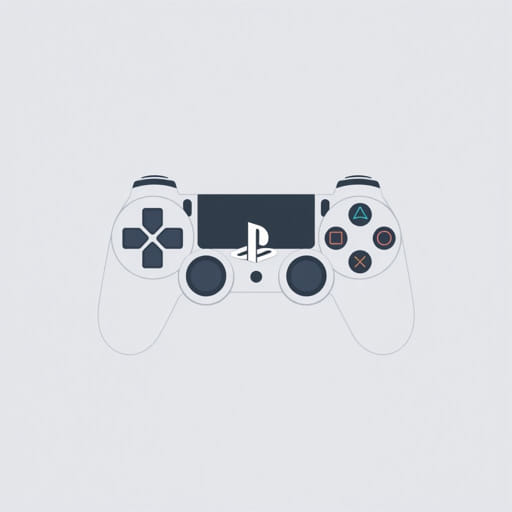
When exploring the functions of a PlayStation controller, especially if you’re new to the system or transitioning from another console, it’s common to encounter confusion about specific button references. One frequent source of confusion involves the letter I on the PlayStation controller. Unlike Xbox controllers that clearly label buttons with letters like A, B, X, and Y, the PlayStation controller uses symbols. So, when players come across a game or guide referencing I in relation to PlayStation, it raises the question: what exactly does I on the PlayStation controller refer to? Understanding this is key to interpreting game instructions, remapping controls, and improving overall gaming accuracy.
Understanding PlayStation Controller Buttons
Standard Symbol Layout
The classic PlayStation controller, including DualShock and DualSense models, does not use letters for its main face buttons. Instead, it features the following symbols:
- Triangle (â³)
- Circle (ã)
- Cross (â), often called ‘X’
- Square (â¡)
These buttons are universally placed in the same arrangement across most PlayStation controllers. They serve as primary interaction buttons in nearly every game on the platform.
Shoulder and Trigger Buttons
Along the top of the controller, you’ll find:
- L1 and R1 These are the upper shoulder buttons.
- L2 and R2 These are the larger lower triggers.
These buttons are used for aiming, shooting, toggling views, and more depending on the game.
Directional and Function Buttons
The directional pad (D-pad) on the left side of the controller provides four arrow inputs (up, down, left, right), while the right side houses the face buttons mentioned earlier. Between these are the analog sticks, the Options button, and the Share/Create button depending on your controller version.
What Does I Mean on a PlayStation Controller?
Misinterpretation of Symbols and Letters
There is no button labeled I on a standard PlayStation controller. When players see I referenced, it’s often due to one of these scenarios:
- Typographical error I may be a misprint or mistyped version of L1 or R1.
- Font confusion Certain stylized fonts can make L1 look like I1 or just I.
- Game-specific mapping Some PC or third-party games use I as a default keyboard key that corresponds to a specific controller button when mapped.
I as a Keyboard Reference
Many PlayStation games on PC or emulators support keyboard and controller input. In some cases, I on the keyboard is used for actions like inventory, interaction, or moving forward. If you’re using a PS4 or PS5 controller on a PC game, the function mapped to the I key might be linked to a specific controller button depending on your configuration.
Common Contexts Where I Is Mentioned
PC Ports and Emulators
When using a PlayStation controller through emulators or in PC versions of games, controller prompts may not match your device. For example:
- Press I to open inventory This refers to the I key on your keyboard.
- If you’re using a DualShock controller, you’ll have to manually map a controller button to trigger the inventory, possibly using the touchpad, Options button, or another face button.
Third-Party Controllers and Custom Configurations
Some third-party PlayStation-compatible controllers feature additional buttons or programmable paddles. In these cases, I could be a custom-labeled input created by the user or manufacturer. Always refer to the specific manual for such devices to understand non-standard button labels.
Accessibility Software and On-Screen Keyboards
Gamers using accessibility tools may encounter I as part of a custom overlay or input mapping system. These tools often translate keyboard keys into controller inputs for players who rely on alternative control schemes.
How to Interpret I in Controller Mapping
Step-by-Step Troubleshooting
If you’re trying to figure out what I corresponds to on your PlayStation controller, use the following process:
- Check the Source: Determine whether the I is referring to a keyboard key or is part of the game’s default instructions.
- Use In-Game Remapping: Go to the game’s control settings and see what action is bound to I. Then assign that action to a specific PlayStation controller button.
- Try Inputs Manually: In practice mode or a safe area, press various buttons and see which one triggers the intended action associated with I.
- Check Forums and Guides: Search the game’s community pages to find others who have translated keyboard controls into PlayStation equivalents.
Using Software to Map I to PlayStation Buttons
Programs like DS4Windows (for PS4 controllers) or Steam Input allow players to map keyboard keys to controller buttons. To assign the function of I to a PlayStation button:
- Open the mapping software and find the profile for your controller.
- Assign the function or keyboard I key to a controller button like Triangle or L1.
- Save and test in-game.
Games Where I May Cause Confusion
MMORPGs and PC-Heavy Titles
Games like Final Fantasy XIV or Warframe, when played on PC with a PlayStation controller, often mix keyboard prompts with controller prompts. I is usually mapped to inventory by default. On a PlayStation controller, that function could correspond to:
- Touchpad click
- Options button
- Custom key via game settings
Games with Minimal Controller Support
In indie titles or older games where full controller support is not implemented, the game may still show keyboard prompts. In this case, I will refer to a key and not a controller button. You’ll need to use software or manual remapping to resolve the inconsistency.
Interpreting I on PlayStation Controllers
While I is not a standard button on any official PlayStation controller, its appearance in games is not uncommon, especially in cross-platform titles, emulators, or PC ports. The most likely explanations for I are that it refers to a keyboard key, is a font-related mislabeling of L1, or appears due to third-party controller remapping. To use a PlayStation controller effectively in these scenarios, it’s crucial to understand how to interpret in-game prompts and reassign inputs when needed. With a clear understanding and a little patience, you can navigate these mismatches and fully enjoy your games with the controller of your choice.