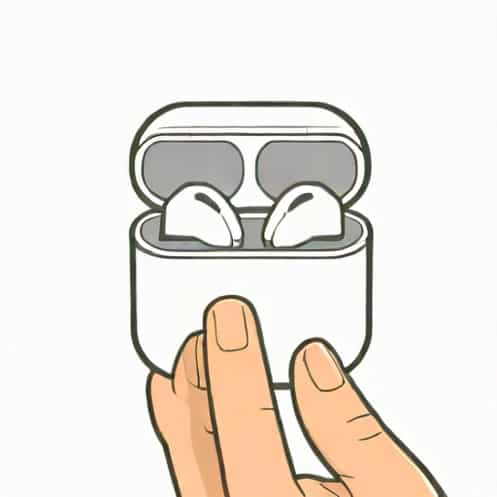
Losing the connection between your AirPods and your device can be frustrating, especially after you have forgotten the device in your Bluetooth settings. Fortunately, reconnecting your AirPods is a straightforward process if you follow the right steps. Whether you are using an iPhone, iPad, Mac, or even a Windows PC, knowing how to properly reset and pair your AirPods ensures that you can enjoy uninterrupted audio, calls, and voice assistant features. This guide provides detailed instructions, troubleshooting tips, and best practices to help you reconnect your AirPods after forgetting the device.
Understanding the Forget Device Feature
When you select Forget This Device in Bluetooth settings, your AirPods are removed from the device’s memory. This means the device no longer recognizes your AirPods, and automatic reconnection is disabled. This feature is helpful if you are troubleshooting connection issues or pairing your AirPods with a new device. However, it also requires a few extra steps to restore connectivity.
Why Forgetting a Device Can Be Necessary
- Resolving connectivity issues such as one AirPod not connecting or sound cutting out.
- Pairing AirPods with a new or different device.
- Clearing previously saved settings to refresh the connection.
Steps to Reconnect AirPods to an iPhone or iPad
If your AirPods were previously connected to an iPhone or iPad and you selected Forget This Device, you will need to reset and pair them again. Follow these steps
Step 1 Place AirPods in the Charging Case
Ensure both AirPods are inside the charging case and the lid is closed. This allows them to reset and prepare for pairing.
Step 2 Open the Lid and Activate Pairing Mode
Open the charging case lid and press and hold the setup button on the back of the case until the LED light starts flashing white. This indicates that the AirPods are in pairing mode and ready to reconnect to a device.
Step 3 Connect via Bluetooth Settings
- Open the Settings app on your iPhone or iPad.
- Navigate to Bluetooth and ensure it is turned on.
- Select your AirPods from the list of available devices.
- Follow the on-screen prompts to complete the pairing process.
Step 4 Test the Connection
Play audio to ensure that both AirPods are functioning correctly. If there are any issues with sound or one AirPod not connecting, proceed to reset them again.
Reconnecting AirPods to a Mac
Mac users can also easily reconnect AirPods after forgetting the device. The process involves resetting the AirPods and pairing them through the Bluetooth menu.
Step 1 Reset Your AirPods
Place your AirPods in the charging case, open the lid, and hold the setup button until the LED flashes white. This ensures the AirPods are ready to pair with a Mac.
Step 2 Access Bluetooth Settings on Mac
- Click the Apple menu and select System Preferences.
- Choose Bluetooth and make sure Bluetooth is enabled.
- Look for your AirPods under available devices and click Connect.
Step 3 Verify Connection
Once connected, test the audio by playing music or using a video call. Both AirPods should work seamlessly. If you experience issues, consider restarting your Mac and attempting the connection again.
Reconnecting AirPods to Non-Apple Devices
AirPods can also connect to Android devices, Windows PCs, or other Bluetooth-enabled gadgets. The process is similar but may involve slightly different steps due to variations in Bluetooth interfaces.
Step 1 Reset AirPods
As always, start by placing your AirPods in the charging case, opening the lid, and holding the setup button until the LED flashes white to enter pairing mode.
Step 2 Enable Bluetooth on the Device
- Go to Bluetooth settings on your device and turn it on.
- Search for available devices and select your AirPods.
- Confirm pairing if prompted, and wait for the connection to establish.
Step 3 Confirm Audio Functionality
After pairing, test audio playback and microphone functionality to ensure your AirPods are fully operational with the non-Apple device.
Troubleshooting Connection Issues
Sometimes, even after following all steps, AirPods may fail to reconnect properly. Here are some troubleshooting tips to resolve common issues
Ensure AirPods Are Charged
Low battery levels can prevent AirPods from entering pairing mode. Charge them fully before attempting to reconnect.
Reset Network Settings
On iPhones or iPads, resetting network settings can clear lingering Bluetooth issues. Navigate to Settings >General >Reset >Reset Network Settings. Be aware that this also resets Wi-Fi networks and passwords.
Restart Your Device
Sometimes, simply restarting your device can resolve Bluetooth conflicts and allow AirPods to reconnect successfully.
Update Software
Ensure your device has the latest software updates installed, as outdated firmware can interfere with Bluetooth connections.
Factory Reset AirPods
If all else fails, perform a complete factory reset. Hold the setup button until the LED flashes amber several times and then white. This restores AirPods to original settings and allows fresh pairing.
Best Practices for Future Use
To avoid the hassle of forgetting your AirPods and reconnecting them in the future, consider these tips
- Keep your AirPods updated with the latest firmware.
- Pair them with your devices immediately after initial setup to prevent forgetting them.
- Use iCloud to sync AirPods with all Apple devices automatically.
- Avoid turning off Bluetooth unnecessarily if you frequently use your AirPods.
- Store AirPods in their case when not in use to maintain battery life and prevent accidental unpairing.
Reconnecting your AirPods after forgetting a device is a simple process when you follow the proper steps. Whether you are using an iPhone, iPad, Mac, or a non-Apple device, resetting the AirPods, entering pairing mode, and selecting them in Bluetooth settings usually restores the connection. Understanding the troubleshooting techniques and best practices can prevent future connectivity issues and ensure your AirPods remain a reliable companion for music, calls, and entertainment. With patience and careful attention to each step, reconnecting AirPods becomes a quick and easy task, allowing you to continue enjoying seamless wireless audio.